
Why is my Shopify store slow? How to find the cause and fix it
See how fast your Shopify store really is, find what slows it down (apps, large images, add-ons, fonts) and fix it safely, without breaking your live store.

Written by: Jere Merivirta · Founder, Merivirta Digital
Published Updated 6 min read
Short answer
Shopify measures your store’s speed from real customers, and you find the numbers in the web performance reports in your Shopify admin. Most slow stores come down to a few causes: too many apps, a main image that loads too late or is too large, chat and tracking add-ons, too many fonts and content that jumps while loading. Fix them on a copy of your theme first and follow the numbers for a couple of weeks.
Last tested
A slow store rarely becomes slow in one day. An app here, a tracking code there, a bigger main image for the campaign, and after a year the product page takes noticeably longer to appear on a phone than it did at launch. A slow store costs sales: some customers leave before the page has even opened.
The good news is that you do not have to guess. Shopify measures your store’s speed from real customers, and the causes are almost always the same handful of things. This is how we find and fix them.
Start with what Shopify has measured
Your Shopify admin already has the numbers. The Online Store page (your theme library) shows a summary of the past 30 days, and the full reports are under Analytics > Reports: search for contentful, next or cumulative.
You need the Reports permission to see them. While your store is still behind a password, no real visitor data is collected, so the numbers start once the store is open.
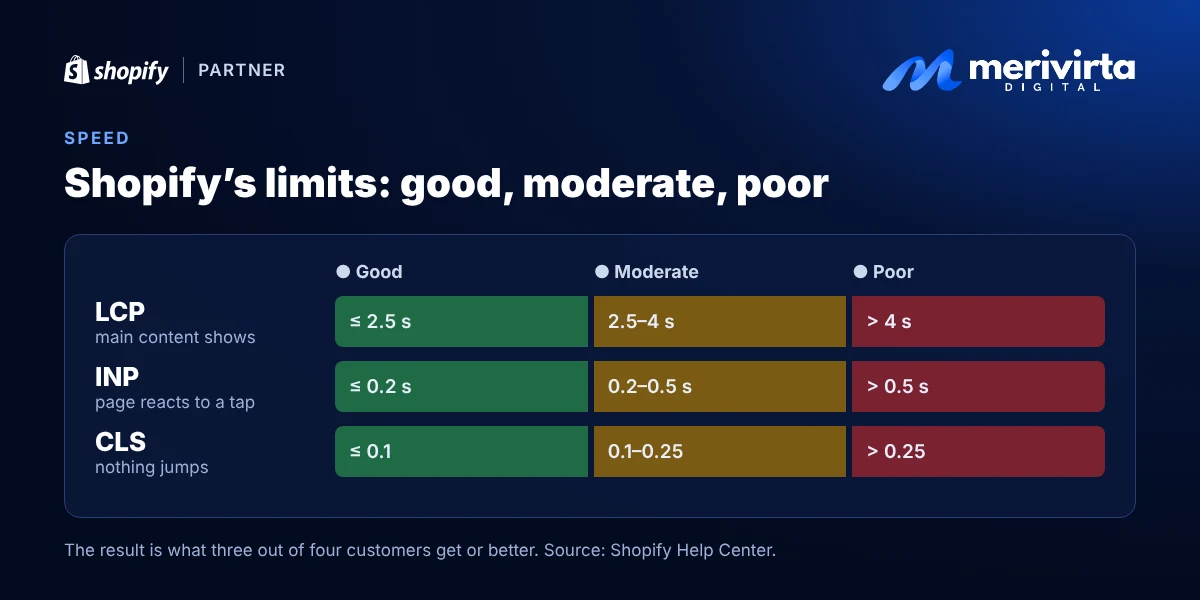
Shopify tracks three numbers, the same ones Google uses to judge how pages feel to use:
| What Shopify measures | Name in the report | Good | Poor |
|---|---|---|---|
| How fast the most important content, usually the main or product image, appears | Largest Contentful Paint (LCP) | 2.5 seconds or less | over 4 seconds |
| How quickly the page reacts when a customer taps or clicks | Interaction to Next Paint (INP) | 0.2 seconds or less | over 0.5 seconds |
| How much the content jumps around while loading | Cumulative Layout Shift (CLS) | 0.1 or less | 0.25 or more |
A result is good when three out of four customers get at least that fast an experience. The reports also mark app installs and theme changes on the timeline, which often shows exactly when the store got slower. In between is a moderate level: not alarming yet, but worth improving.
Find the slow page
The overall number tells you whether there is a problem, not where it is. Two reports, found with the same search, show that:
- Page type splits the numbers by kind of page: home page, product page, collection, cart and so on. If only product pages are red, start there.
- Page URL lists single pages. That is where you find, say, a campaign page whose large image slows the whole page down.
The numbers can lag by up to a day and a half. After a fix, give it at least two weeks before you judge the result.
To see what slows down a single page, Google’s free PageSpeed Insights tool lists the causes. Its score is only a test on one imagined phone, though. Your real customers’ experience is in the Shopify reports.
What usually slows a store down
1. Apps you no longer need
Every app that adds something visible to your store loads its own code, often on every page. Shopify itself recommends removing apps you do not use and apps that do the same job as another one.
- Go through your apps and remove the ones you no longer use.
- In the theme editor, open App embeds and switch off the ones you do not need.
- Older apps could add code straight into the theme, and it can stay behind after the app is removed. If your store is a few years old, ask a developer to check the theme for leftovers from removed apps.
Example: Vorssa Ink’s theme still carried code from apps that were no longer in use. After the clean-up, the home page went from 11.4 MB to 3.5 MB, and layout shift while loading (CLS) fell from 0.15 to 0.01. Read the full Vorssa Ink theme redesign.
2. The main image loads too late or is too large
The large image at the top of the page is usually what the customer is waiting for. The most common mistake is that the theme tells the browser to load it later, the same way as images further down the page.
- The first image in view loads straight away, and images further down load when the customer scrolls to them.
- Phones get a small image and large screens a large one. Shopify does this for you when the theme uses its built-in image tools.
- Do not fade the main image in with an animation. It looks nice, but the customer waits longer to see it.
For your developer: no loading="lazy" on the first image, fetchpriority="high" instead, and images through the image_url and image_tag filters with widths and sizes.
3. Chat, reviews and tracking codes
Chat windows, review widgets, testing tools and tracking codes compete with your store’s own content. Most of them can wait until the page is open.
- Remove tracking codes whose data nobody looks at.
- Let the chat load only when a customer opens it.
- Switch off testing tools when no test is running.
For your developer: load non-essential scripts with defer or async.
4. Too many fonts
Every font and every weight is its own file that has to load before the text looks right. One or two fonts and only the weights you really use are enough for most stores.
5. Content that jumps
A banner or image that appears late pushes everything down just as the customer is about to tap, and they hit the wrong thing. Space for images should be reserved in advance, and the same goes for announcement bars and app widgets.
6. Large catalogues and a heavy theme
If collection pages are slow only with a large catalogue, the cause may be in the theme code. A theme that is fast with ten products can be slow with a thousand. Fixing that is a job for a developer.
Make the changes safely
Speed fixes change the theme of a live store, so we never make them in the published theme. We make each change on an unpublished copy of the theme first, test it, check it on a phone and only then publish it. We explain the workflow in Stop editing your live Shopify theme.
After publishing, follow the Shopify report for a couple of weeks. That shows whether the change really helped your customers.
When to ask for help
If your numbers are in the red and the cause is not obvious, the problem is often an app that cannot be removed, a heavily customised theme or code added years ago that nobody remembers. That is where an experienced Shopify developer saves you time: we measure, fix the biggest causes first and show the before and after in your own Shopify reports.
Sources: Shopify’s web performance reports in the Help Center and the performance best practices for themes on shopify.dev.
Want to know what slows your store down? Ask Virta below.
Questions and answers
Where do I see my Shopify store’s speed?
In the Shopify admin, the Online Store page (your theme library) shows a summary of real visitor data from the past 30 days. The full reports are under Analytics > Reports: search for “contentful” (LCP), “next” (INP) or “cumulative” (CLS). Data can lag by up to 36 hours, and a new store may not have enough data yet. A password-protected store collects no real visitor data at all, and you need the Reports permission to see the reports.
What counts as a fast Shopify store?
Shopify uses the same limits as Google: the main content shows within 2.5 seconds, the page reacts to a tap within 0.2 seconds and nothing jumps around while loading. A result is good when three out of four customers get at least that fast an experience.
Is the PageSpeed Insights score the same thing?
No. The score at the top of PageSpeed Insights is a lab test of one page on a simulated device. It is useful for finding causes, but the real customer data in your Shopify admin is what your customers actually experience.
Do I need a new theme to make my store fast?
Usually not. Most speed problems come from apps, images and bits of code added over time, and they can be fixed in your current theme. A new theme helps when yours is very old or so heavily customised that nobody can maintain it any more.
Want this done for your store?
Ask Virta, my AI assistant. It answers right away, collects the details, and I get back to you personally.
Ask VirtaKeep reading
-
 Video
Problems and fixes
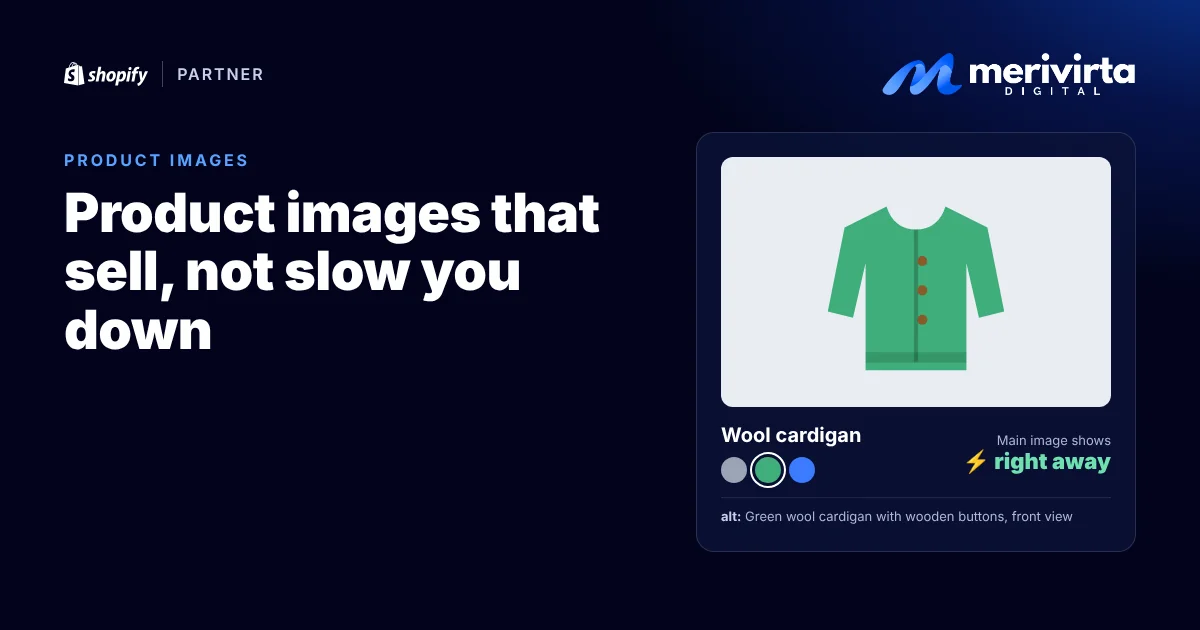
Shopify product images: how to make images that sell without slowing your store
Size, aspect ratio, framing, alt text, variant images and Google Shopping and Meta feeds. Shopify’s and Google’s guidance, plus a ready checklist for product images.
-
 Video
Problems and fixes
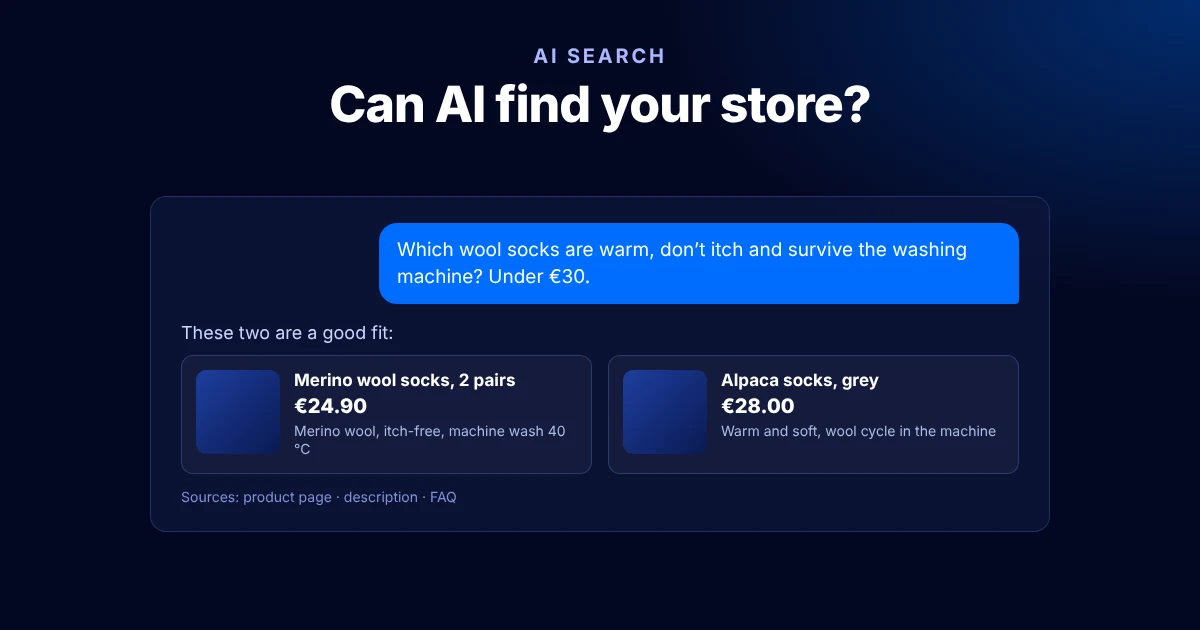
Get your Shopify store found in ChatGPT and Google’s AI search
How AI assistants pick products, and what a Shopify store can do now: product data, structured data, FAQs, collections, llms.txt and Shopify Catalog.
-
 Video
Problems and fixes
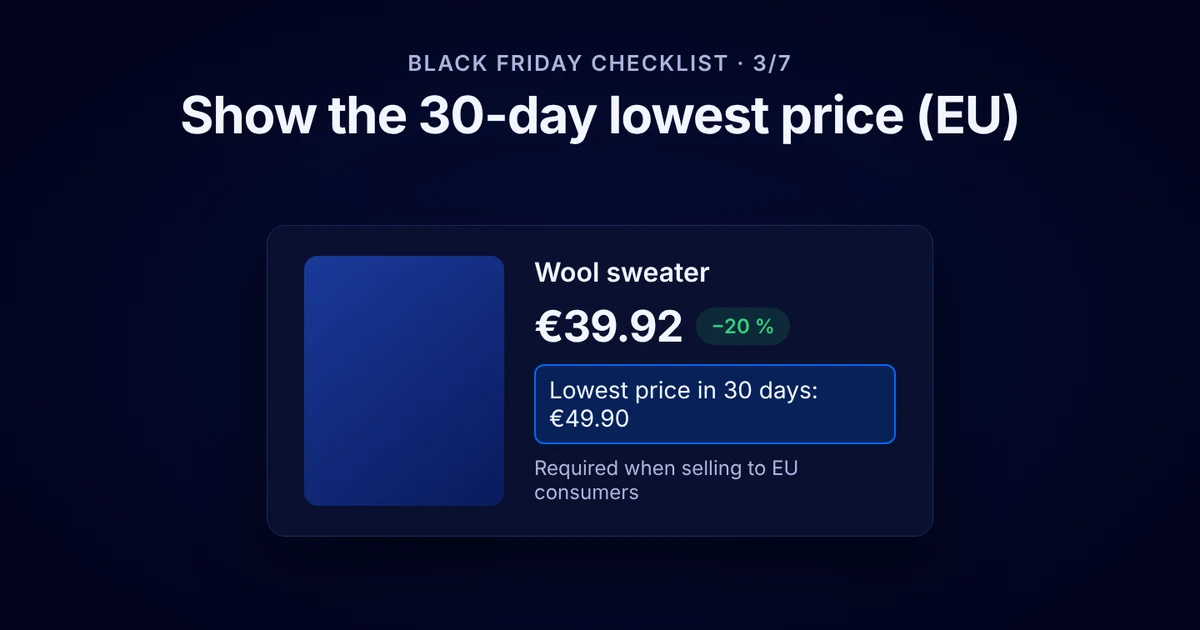
Black Friday on Shopify: the checklist before your sale
Get your Shopify store ready for Black Friday: discounts and combinations, the EU 30-day lowest price, inventory, delivery times, checkout and abandoned carts.
