
Shopify product images: how to make images that sell without slowing your store
Size, aspect ratio, framing, alt text, variant images and Google Shopping and Meta feeds. Shopify’s and Google’s guidance, plus a ready checklist for product images.

Written by: Jere Merivirta · Founder, Merivirta Digital
Published 15 min read
Short answer
Upload product images to Shopify at around 2048 × 2048 pixels, all in the same aspect ratio and with no text or borders, and they work as they are in Google Shopping and Meta catalogues too. Give each file a descriptive name, write a short alt text for every image and attach an image to every colour option. For speed, what matters most is that the first image on the page loads straight away and the rest only when needed.
Last tested
Online, a customer cannot pick the product up. The image does that job. In Baymard Institute’s product page research, 56% of test users started on a product page by looking at the images, before the title or the description, and 42% tried to judge the product’s size from the images alone.
The same images also work outside your store. Google Shopping, Google Images and Facebook and Instagram catalogue ads all use your store’s own product images. So it pays to make them once, in a way that works everywhere. This guide brings Shopify’s, Google’s and Meta’s guidance together, and ends with a checklist you can hand to your photographer or work through yourself.
Size, aspect ratio and file format
Shopify recommends 2048 × 2048 pixels for square product images. An image can be up to 5000 × 5000 pixels and must be under 20 MB. Shopify makes smaller versions of every image for phones, desktops and collection pages, and serves each browser the best file format it supports. You do not need to shrink images yourself before uploading.
For product images, Shopify recommends PNG first and JPEG second. Both also work in every product feed.
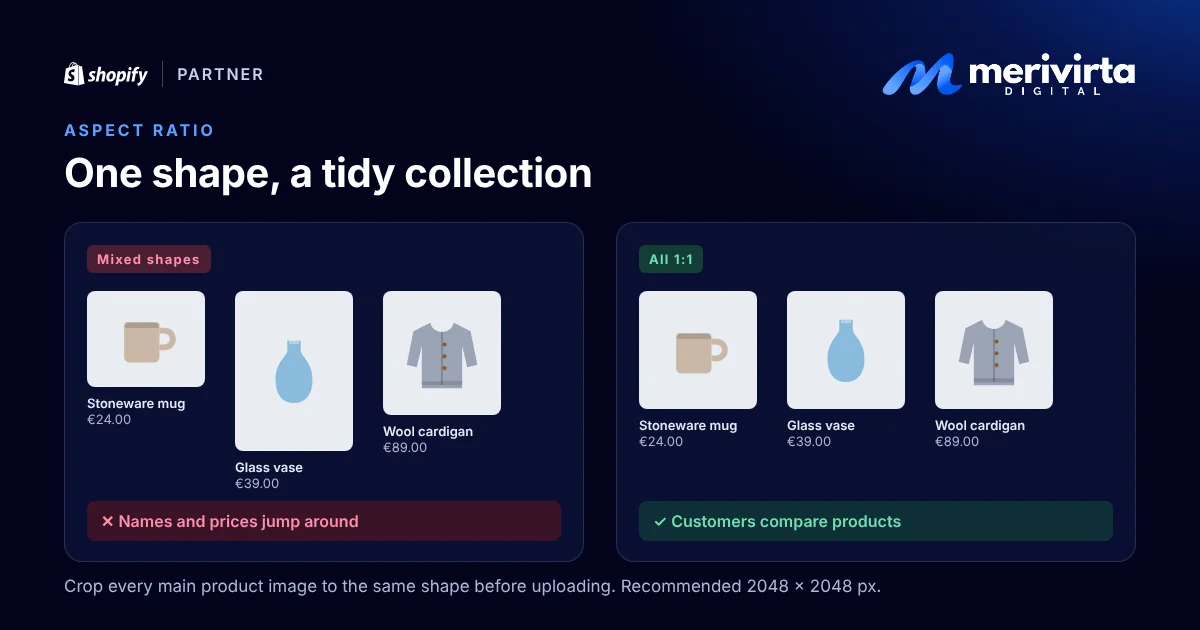
More important than the exact pixel count is that all your main product images share the same aspect ratio. Shopify notes that images shown side by side on a collection page display at different sizes when their shapes vary. Product names and prices then sit at different heights, and the page looks unfinished.
- Pick one shape for the whole store. Square (1:1) suits most products and works as it is in feeds. Portrait (for example 4:5) works well for clothing and furniture.
- Crop all main product images to that shape before uploading, and leave the same amount of space around the product in every image.
- Many themes let you force collection images into one shape in the theme editor. That crop can cut off the edges of a product, though, so consistent source images are the better fix.
| Where the image goes | Minimum | Recommended | Maximum |
|---|---|---|---|
| Shopify store | – | 2048 × 2048 px (square) | 5000 × 5000 px, under 20 MB |
| Google Merchant Center | 500 × 500 px (required from 31 Jan 2027) | at least 1500 × 1500 px | 64 megapixels, 16 MB |
| Meta catalogue (Facebook, Instagram) | 500 × 500 px, JPEG or PNG | – | 8 MB |
Make your images 2048 × 2048 pixels and keep the files under 8 MB, and the same image works in your store, on Google and on Meta.
Framing and background
The main image has one job: to show the product clearly. Google’s guidelines say the product should fill 75–90% of the image. That way it stands out even as a small image in search results and on collection pages.
- A consistent, calm background on every main image. White or a light neutral is the safe choice.
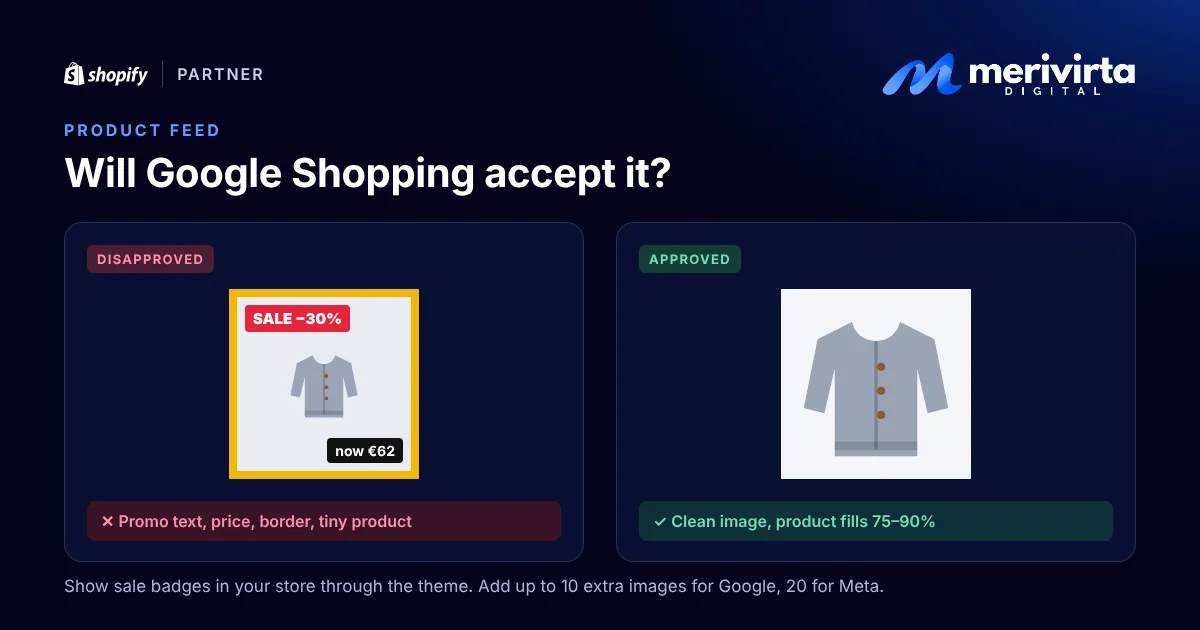
- No text, borders or logos on the image. Google disapproves products whose image carries promotional text, a price or shipping details, a watermark, a barcode or a logo added afterwards. Show sale badges and labels through your theme, so the image itself stays clean.
- Only the product for sale. The main image must not show other products that are not sold with it. Props belong in additional images.
- No placeholders. A logo, a “coming soon” image or a plain colour square as the product image leads to disapproval on Google.
You can tidy up backgrounds in Shopify yourself. Open an image in your Shopify admin, and the media editor (Shopify Magic) can turn the background into a solid colour or transparent, or generate a new scene from a short description. Keep the product exactly as it is, though. An image that makes the product look better than it is brings returns, not sales.
If you use images made or edited with AI, do not strip the information that says so from the file. Google requires it to stay in images sent to Merchant Center. Shopify adds an invisible watermark to images it generates.
Which images to make for each product
One image on a white background does not answer a customer’s questions. A good product page shows at least these:
- A main image on a consistent background, showing the product from the front or the angle it is recognised by.
- Other angles: side, back, bottom or inside, when they matter for the buying decision.
- An image in use or in a setting that shows the size: a chair in a room, a bag on a shoulder, a mug in a hand. According to Baymard, 28% of large online stores show no image at all from which the size can be judged.
- A close-up of the material, a seam or the detail that sets the product apart from a cheaper one. It should be sharp enough to zoom into.
- The packaging or what comes in the box, when customers want to know what they get.
- A video or 3D model, when the product is better seen moving. Shopify takes videos up to 10 minutes and 1 GB, and Shopify’s own Online Store 2.0 themes and the Horizon themes show both videos and 3D models.
The order matters. The first image shows on collection pages and usually becomes the main image in your product feed, so it is always a clean product shot. In-use images and close-ups come after it.
Give each file a descriptive name before uploading
Google reads the image file name too. Its guidelines say a short, descriptive name such as my-new-black-kitten.jpg is better than IMG00023.JPG. So name your images before uploading, for example wool-cardigan-grey-front.jpg.
- Use lower-case letters and hyphens.
- According to Shopify, do not end a name with words such as
small,medium,largeorthumb, because the image service may read them as a resize request. - You can rename an image you already uploaded under Content > Files by changing the file’s URL handle. The old address stops working, so only do this for images nothing else links to.
Give every image alt text
Alt text is a short description of the image. A customer using a screen reader hears it, it shows in place of the image if the image fails to load, and it helps Google understand what the image shows.
To add it in Shopify:
- Go to Products and open the product.
- Click the product image to open its preview.
- Click Add alt text, write the text and save.
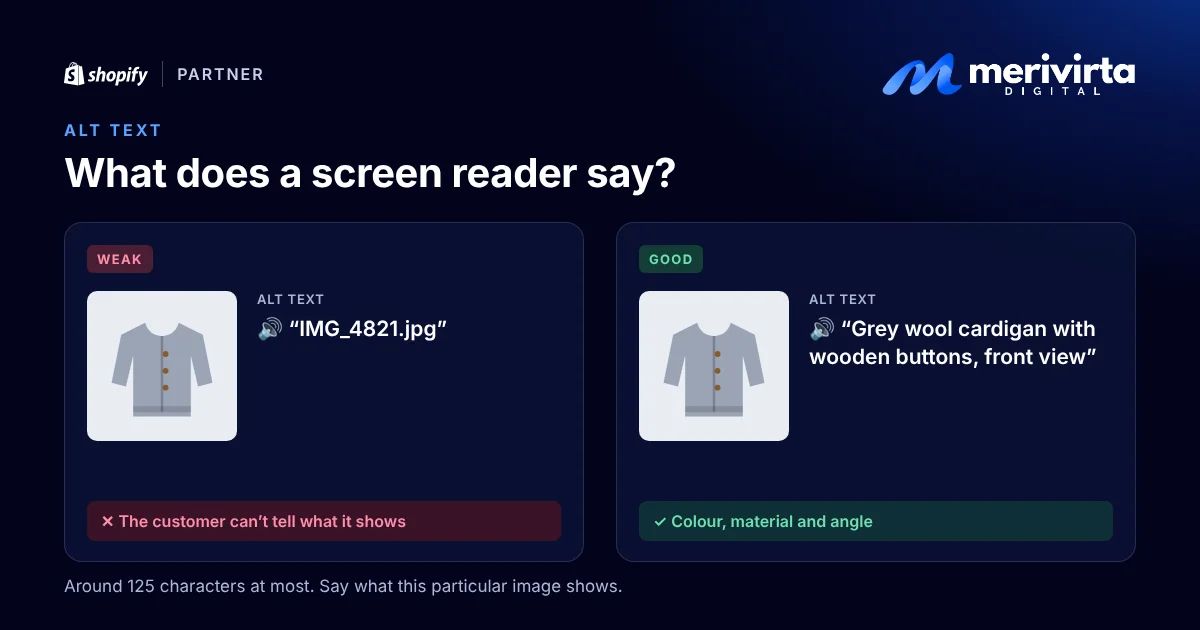
Shopify recommends 125 characters or fewer, with a limit of 512. In Google’s example, the weakest alt text is a missing one and the next weakest is stuffed with keywords. “Puppy” is better, and the best is “Dalmatian puppy playing fetch”. Good alt text says what this particular image shows and sets it apart from the product’s other images.
| Weak | Better |
|---|---|
IMG_4821.jpg | Grey wool cardigan with wooden buttons, front view |
| Cardigan | Close-up of the cardigan’s cuff and ribbed knit |
| cardigan wool knit buy cheap | Model wearing the cardigan, which reaches the hips |
With hundreds of images, you can import alt text in the Image Alt Text column of the product CSV, and Shopify can suggest alt text for images that have none. Always read a suggestion before you accept it.
Attach an image to every variant
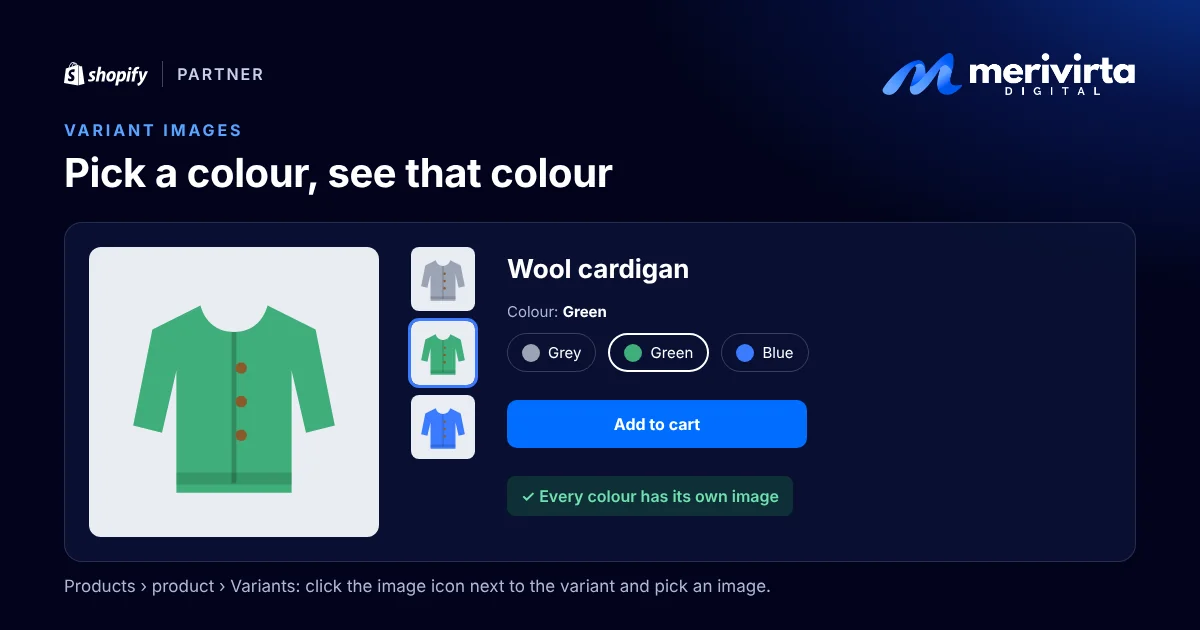
When a customer picks a colour, they want to see that colour. If the image does not change, they hesitate or order the wrong one.
- Open the product under Products.
- In the Variants section, click the image icon next to the variant.
- Choose one of the product’s images or upload a new one, and save.
Each variant can have one assigned image. Add the other images of the same colour to the gallery next to each other. Many themes then show the chosen colour’s images first.
Variant images matter in feeds too. Google asks for a unique image for each variant that shows only that variant. Without one, a green cardigan can appear in Google Shopping with the grey cardigan’s image.
Product images in Google Shopping and Meta catalogues
A product feed is a list of your store’s products that Shopify or a feed app sends to Google (Merchant Center) and Meta (the Facebook and Instagram catalogue). The feed carries links to your store’s own images. So feed images are exactly as good as your store’s images.
Yes, one product can have several images. A feed has one main image and additional images on top:
| Channel | Main image | Additional images | Worth knowing |
|---|---|---|---|
| Google Merchant Center | clean product shot | up to 10 | A separate field for lifestyle images. Additional images follow the main image rules. |
| Meta catalogue | JPEG or PNG, at least 500 × 500 px | up to 20 | A replaced image needs a new address, or Meta does not notice the change. |
Additional images can show other angles, the product in use, a close-up of a detail, the parts of a bundle and the packaging. Google says additional images that are too small are not disapproved, but they are not shown either.
Keep Google’s main image rules in mind when you shoot:
- The product fills 75–90% of the image.
- No promotional text, prices, sale badges, watermarks, barcodes or logos added afterwards.
- No borders and no placeholder images.
- For products sold in packaging, show the packaging in three dimensions, not just the front.
- The image must be sharp. For blurry, pixelated or small images, Merchant Center shows a “Low image quality” issue. Google warns about images under 500 × 500 pixels, and from 31 January 2027 it will no longer accept them.
When you replace a product image in Shopify, the new image gets a new address, and the feed updates at its next sync.
Product images in AI assistants
When a customer asks ChatGPT or Google’s AI Mode for a product recommendation, the answer increasingly shows product cards with images. People also search with images: according to Google, Google Lens handles nearly 20 billion visual searches a month, and about one in five of them is related to shopping.
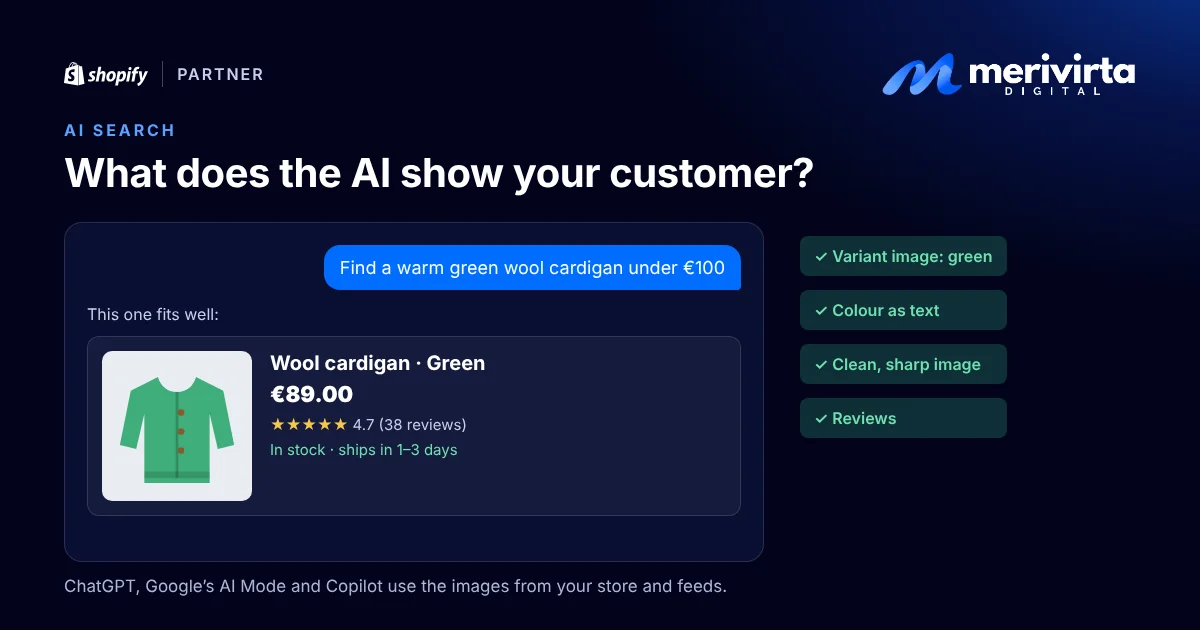
AI assistants do not invent product images. They use the same images as your store and your feeds:
- ChatGPT gets Shopify stores’ products through Shopify Catalog. In OpenAI’s product feed, the main image is required and must show that particular variant. Additional images are optional.
- Google’s AI Mode draws products from Google’s product database (the Shopping Graph), which Google says holds more than 50 billion product listings. Google’s guidance says a Merchant Center feed helps products show up in AI responses.
- Microsoft Copilot and other assistants get Shopify stores’ products through Shopify’s Agentic sales channel.
So every good practice in this guide works for AI too:
- Variant images: when every colour has its own image, someone asking for a green cardigan sees a green cardigan in the answer.
- Colour and material in text too: an assistant cannot be relied on to read a colour correctly from an image. Put the colour in the variant name and the product attributes, so the image and the text say the same thing.
- Alt text and file name: they help Google understand what the image shows.
- A clean, sharp image: a product card in an AI answer is small. When the product fills the frame and there is no text on the image, it is recognisable even small.
- Size and quality: the same 2048 × 2048 pixel image works everywhere.
Images alone do not decide
OpenAI says ChatGPT selects the products it shows by itself and that they are not ads. The order depends on things like availability, price, quality and whether the seller is the maker or primary seller of the product. ChatGPT can show a summary based on public reviews, and OpenAI’s product feed has its own fields for the product’s rating and review count. So collect product reviews from all your buyers, not only the happy ones, and keep prices and stock up to date.
We cover product data, structured data, FAQ text and Shopify Catalog in Get your Shopify store found in ChatGPT and Google’s AI search.
Let the first image load straight away
The main product image is usually what the customer is waiting for, and it is exactly what Shopify and Google use to measure how fast the page opens. Two things decide it:
- The first image loads straight away, and images further down only when the customer scrolls to them. A common mistake is a theme that holds back the main image the same way it holds back the images at the bottom.
- Phones get a small image and large screens a large one. Shopify does this by itself when the theme uses its built-in image features.
Also avoid fading the main image in with an animation. It looks nice, but the customer waits longer to see it. We cover how to measure your store’s speed, and the other usual causes of a slow store, in Why is my Shopify store slow?.
For your developer: loading="eager" and fetchpriority="high" on the main product image, loading="lazy" on the rest; images through the image_url and image_tag filters (with widths and sizes), with width and height set so the layout does not jump.
How Google finds your images
Google Images brings visitors when images follow its guidelines. Shopify’s own themes handle most of this already, but in a customised theme check these:
- The image is a real image, not a background. Google does not index images set as page backgrounds.
- The image sits near text about it. A product image next to the product name and description is clear to Google.
- The image is sharp. Google says high-quality images appeal to users more than blurry ones.
- The product page’s structured data includes the image. Shopify’s own themes add the product’s details to the page in a form Google can read. In a customised theme, check that the image is included.
For your developer: images as <img> elements (not CSS background-image), srcset and sizes, and the image field in Product structured data.
Product image checklist
Hand this list to your photographer or work through it before launching a new product.
Before the shoot
- Decide one aspect ratio for the whole store (usually square, 1:1) and one background for main images.
- Make a shot list for every product: main image, other angles, in use, size reference, close-up, packaging.
- Shoot every colour and style separately.
During the shoot
- The product fills 75–90% of the frame, with the same space on every side.
- Even light and true colours, so the product looks the same as when it comes out of the box.
- Close-ups sharp enough to zoom into.
- At least one image shows the product’s size.
Before uploading
- Images around 2048 × 2048 pixels, under 8 MB, PNG or JPEG.
- All main images in the same aspect ratio.
- No text, prices, sale badges, borders, watermarks or added logos.
- Descriptive file names:
wool-cardigan-grey-front.jpg. - In AI-edited images, the product looks as it really is, and the AI information is kept in the file.
In Shopify
- The first image is a clean product shot, followed by other angles, in-use images and close-ups.
- Every image has its own alt text of about 125 characters at most.
- Every variant has its own image, and each colour’s images sit together in the gallery.
- A video or 3D model when the product is better seen moving.
In your feeds
- No image issues in Merchant Center (such as “Low image quality”).
- Additional images besides the main one: up to 10 for Google, up to 20 for Meta.
- Every variant has its own image in the feed too.
In AI assistants
- Every variant has its own image, and the colour is in the variant name and attributes too.
- Shopify’s Agentic channel and a Merchant Center feed are set up.
- Product reviews are collected from all buyers, and prices and stock are up to date.
In your theme
- The first image on the page loads straight away, the rest only when needed.
- Phones get a small image, large screens a large one.
- Collection images share one shape, and the page does not jump while loading.
- Sale badges and labels come from the theme, not the image.
Sources: Shopify Help Center on product media types and sizes, adding alt text, adding images to variants, managing files and media generation with Shopify Magic; the performance best practices for themes on shopify.dev; Google’s image SEO best practices and Merchant Center help on the main image, additional images and low image quality; Meta’s catalogue fields; OpenAI on shopping in ChatGPT and its product feed; Google’s AI optimisation guide, shopping in AI Mode and Google Lens figures; and Baymard Institute’s research on in-scale product images.
Wondering why your products are missing from Google Shopping, or why your product pages open slowly? Ask Virta below.
Questions and answers
What size should product images be on Shopify?
Shopify recommends 2048 × 2048 pixels for square product images. An image can be up to 5000 × 5000 pixels (25 megapixels) and must be under 20 MB. The same size also works for Google Shopping, which recommends at least 1500 × 1500 pixels, and for Meta catalogues, which need at least 500 × 500 pixels.
What is good alt text for a product image?
A short description of what the image shows, such as “Grey wool cardigan with wooden buttons, front view”. Shopify recommends 125 characters or fewer, with a limit of 512. Google advises against filling alt text with keywords.
Can a product feed include several images of one product?
Yes. Google Merchant Center takes up to 10 additional images besides the main image, and a Meta catalogue up to 20. The product’s first image usually becomes the main image, so keep it a clean product shot with no text or borders.
Do product images affect whether ChatGPT recommends my product?
AI assistants show the same images as your store and your feeds, and in OpenAI’s product feed the main image is required and must show that variant. The choice also depends on availability, price, product data and reviews. A good image makes sure the product looks right in the answer.
Can one variant have several images?
In Shopify, each variant gets one assigned image. Add the other images of the same colour to the product gallery next to each other. Many themes then show the chosen colour’s images first. In feeds, Google asks for a unique image for each variant.
Can I add a sale badge or logo to a product image?
Show sale badges in the store through your theme, not printed on the image. Google Shopping disapproves products whose images carry promotional text, a price, a watermark or a logo added afterwards, and your feed uses the same images as your store.
Do large images slow down a Shopify store?
They can, but usually the cause is how the theme loads the images, not the size of the original file. Shopify resizes images automatically when the theme uses its built-in image features. What matters most is that the first large image on the page loads straight away and the ones further down only when the customer scrolls to them.
Want this done for your store?
Ask Virta, my AI assistant. It answers right away, collects the details, and I get back to you personally.
Ask VirtaKeep reading
-
 Video
Problems and fixes
Get your Shopify store found in ChatGPT and Google’s AI search
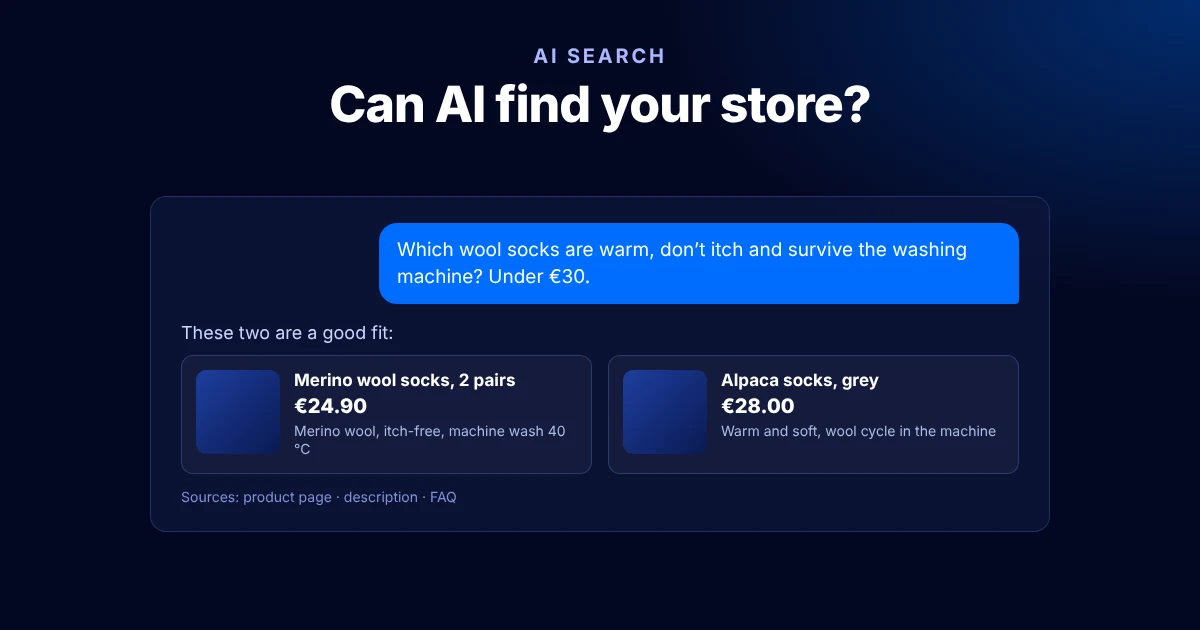
How AI assistants pick products, and what a Shopify store can do now: product data, structured data, FAQs, collections, llms.txt and Shopify Catalog.
-
 Video
Problems and fixes
Black Friday on Shopify: the checklist before your sale
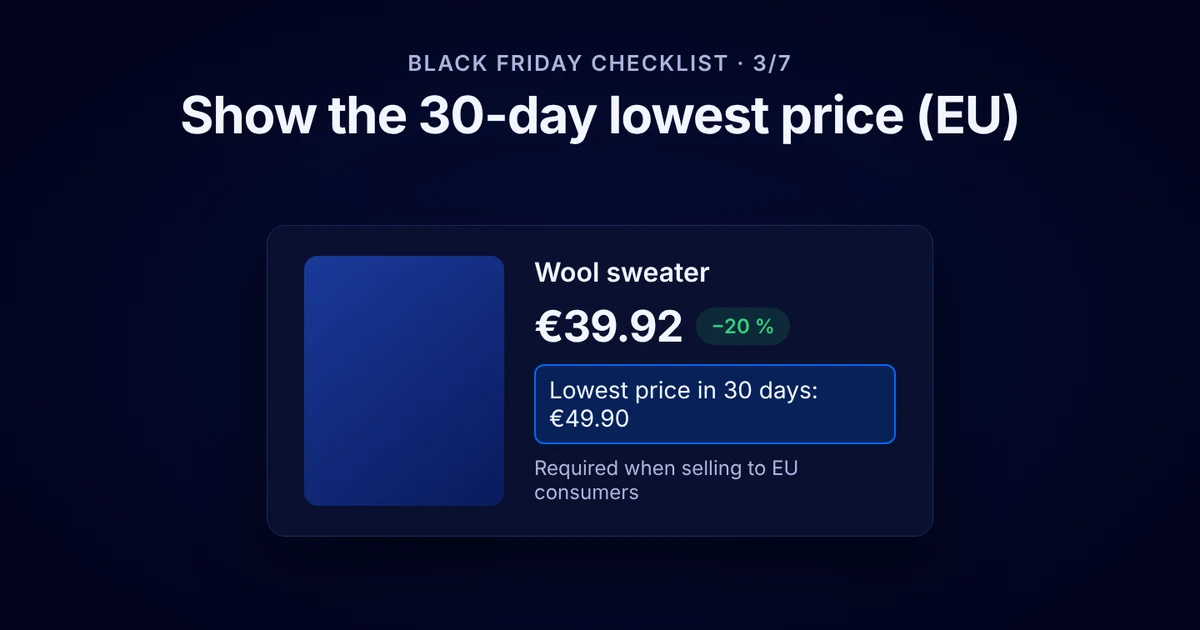
Get your Shopify store ready for Black Friday: discounts and combinations, the EU 30-day lowest price, inventory, delivery times, checkout and abandoned carts.
-
 Video
Problems and fixes
Why is my Shopify store slow? How to find the cause and fix it
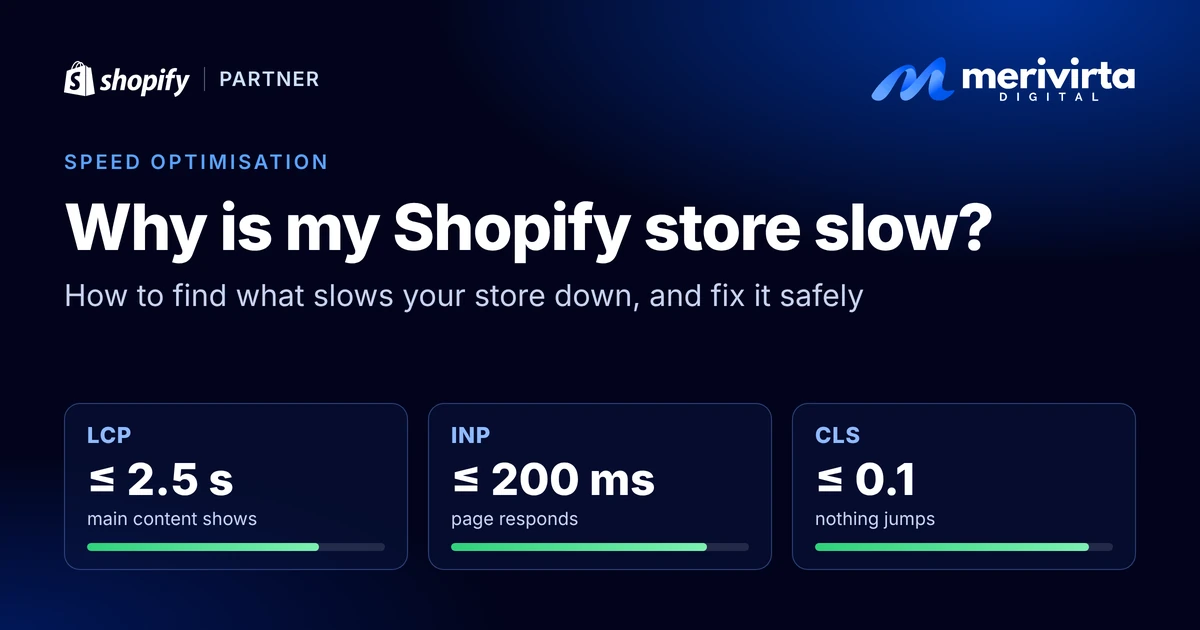
See how fast your Shopify store really is, find what slows it down (apps, large images, add-ons, fonts) and fix it safely, without breaking your live store.
